






Gaming
Gaming
How to Get Better at VALORANT: Aim, settings & gameplay tips
Learn how to get better at VALORANT with pro settings, crosshair codes, sensitivity tips and aim training, seven ways to climb the ranks faster.
Part of this story
In the world of competitive first-person shooters, VALORANT is up there as one of the elite, so you'll want to hone your skills to be the very best.
A game that has captured the hearts and minds of gamers worldwide, VALORANT features tactical gameplay, precise gunplay and strategic team dynamics, making it a true test of skill and strategy.
Whether you're a fresh recruit or a seasoned agent, the quest to improve and climb up the ranks in VALORANT is a journey filled with challenges, triumphs and endless opportunities for growth.
If you've ever wondered how to raise your game, you're in the right place. In this guide, delve into the strategies required to not only get better at VALORANT but to dominate the battlefield absolutely. Here are seven simple tips to level up your game, forge your legacy and leave your mark on the world of VALORANT.
01
Set up your game properly
What you should be sure to set up, besides proper sensitivity, is your crosshair. In VALORANT, you have countless options, from classic to a crosshair shaped like a square or smiley face.
How to copy a crosshair in VALORANT
Found a pro player's crosshair you want to try? You don't have to recreate it from scratch. VALORANT lets players share their crosshair settings through profile codes, making it easy to test different setups.
Here's how to copy a crosshair in VALORANT:
- Copy the crosshair profile code you want to use.
- Open Settings, then Crosshair.
- Select the Import Profile Code icon next to Crosshair Profile.
- Paste your code and click Import.
- Select your new profile and test it in the Shooting Range.
You can even copy a teammate's crosshair while spectating them by typing /cc or /crosshair copy into the chat.
The changes apply without restarting the game, so feel free to experiment. Just remember that borrowing a pro's crosshair doesn't mean borrowing their aim. Find one that's comfortable and stick with it long enough to get used to it.
Finding your VALORANT sensitivity
There's no magic number when it comes to VALORANT sensitivity. What works for a professional player might feel completely wrong for you.
Your sensitivity comes down to two settings: your mouse's DPI and your in-game sensitivity. Multiply them together, and you get your effective DPI, or eDPI.
For example, a mouse set to 800 DPI with an in-game sensitivity of 0.35 gives you an eDPI of 280.
If you're switching from another shooter, an online sensitivity converter can give you a useful starting point. From there, head into the Shooting Range and experiment with small adjustments.
The goal is to find a sensitivity that lets you comfortably turn, track moving targets and make precise adjustments without constantly overshooting.
And once you've found something that works? Give yourself time to build consistency before changing it again.
Optimize your VALORANT settings
The sound setting is also important. You'll notice right away that the agents use different announcements. Some of them, especially the ones at the beginning of the round, are irrelevant, and you might even find it useful to turn them off. What you should have on, however, is Gameplay (⚙️ Audio Settings - voice-over). This will let you hear the agents' important announcements. For example, when Skye blinds someone, she'll say, "Blinded." Owl will announce "Found them" or "There they are" when revealed by an arrow.
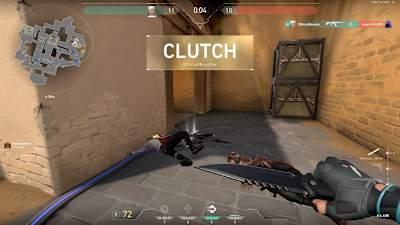
Valorant rewards time spent getting your setup on point
© Riot Games
You'll also find it handy to turn off the display of your opponents' bodies via Show Corpses Off (⚙️ General Settings - other). The bodies of the agents are otherwise quite large, and they can cover a thrown weapon or confuse you and slow down your reaction.
Tune the keys to what you're comfortable with (⚙️ Controls settings). The basic ability settings don't suit everyone, so investing the time to customize the keys is a good idea. If you change your keyboard language often, we recommend you bind two different keys; otherwise, your bind won't work in the game with the wrong keyboard settings.
Also, don't forget to customize the mini-map (⚙️ General settings - map) to get the info you need about what's going on in the game. You can choose its size, rotation and other parameters. Thanks to the mini-map, you can track not only your team-mates but also your opponents and the location of some abilities once they're revealed.
Best VALORANT graphics settings for FPS
In terms of resolution and graphics settings, it really depends on your gaming setup. Try out what suits you and how your PC handles the game. However, always set the FPS limit to off and if you want to increase your FPS, lower the quality of your graphics settings as below:
VIDEO – GRAPHICS QUALITY
Multi-threaded Rendering
ON
Material Quality
LOW
Texture Quality
LOW
Detail Quality
LOW
UI Quality
LOW
Vignette
OFF
VSync
OFF
Anti-Aliasing
NONE or MSAA 2x
Anisotropic Filtering
1x (if you have skins, feel free to try 16x)
Improve Clarity
OFF
Experimental Sharpening
OFF
Bloom
ON/OFF (doesn't have much effect on FPS)
Distortion
OFF
Cast Shadows
OFF
As a last suggestion, you should check the Enemy Highlight Color setting (⚙️ General settings - accessibility), where you can specify the color of opponents' rendering (red - basic, two different shades of yellow, purple). One of the colors will likely suit you better in terms of catching your attention.
Also, check out the 'Stats' setting, which lets you instantly find information about the performance of your PC or connection. You can choose which data you want to see during the game. If you're not going to test these settings, we recommend you turn this option off so that it doesn't disturb you while you're playing.
A great-looking game is nice, but not if your frame rate takes a hit every time the action heats up.
For competitive play, smooth performance and clear visibility generally matter more than fancy visual effects. If you're trying to boost your FPS, start with these VALORANT graphics settings:
- Material Quality, Texture Quality and Detail Quality: Low
- Anisotropic Filtering: 1x
- Anti-Aliasing: None for maximum FPS, or MSAA 2x for smoother edges
- Improve Clarity: Off as a performance-focused starting point
- Bloom, Distortion and VSync: Off
- Multithreaded Rendering: On, if supported by your system
These settings aren't rules you have to follow. Every PC performs differently, and you might find that increasing Texture Quality improves the visuals without noticeably affecting your frame rate, particularly if your graphics card has enough available memory.
Start with the basics, monitor your FPS and adjust from there.
For a closer look at how competitive players fine-tune their setups, check out our full breakdown of VALORANT pro settings.
Another setting worth experimenting with is Enemy Highlight Color, found under Settings, then, General, then Accessibility. You can choose between red, two yellow options and purple for enemy highlights. Try each one to see which makes opponents easier to spot against different backgrounds.
Finally, head to Settings, then Video, then Stats to monitor your PC and connection performance. You can display information such as your FPS, network latency and packet loss to see how smoothly the game is running. Keep the stats you find useful on screen, and hide the rest if they become distracting.
02
Improve your aim

The Shooting Range will help you improve your accuracy
© Riot Games
Having precise aim in VALORANT is a must and can be the difference between victory and defeat. Although abilities play a key role, aiming is still the foundation of the game. There are several ways to improve your shooting accuracy.
You can turn on practice mode, where there are several options to choose from, but Shooting Range mode is the most suitable for aim practice. In it, you can practice shooting on bots or aiming with Agent Jett's ultimate aiming gun, for example. You can also set the speed at which they spawn and disappear. In addition, you can change the aiming sensitivity directly in the Shooting Range.

Dedicate time to aim training and headshots to increase your efficiency
© Sulejman Omerbasic/Red Bull Content Pool
If you find the bot aiming too easy, move to Deathmatch, where you'll already be playing against normal players on classic maps. This will serve well as a warmup before a match, as you don't use abilities there – just shoot – and if your opponent accidentally disables you, you'll revive right away.
Another cool option is to use the external Aim Lab app, which you can find on Steam. While not directly part of VALORANT, Aim Lab is the official training partner for VALORANT VCT and offers over 12,000 different training options. Of course, it can adapt to your personal settings and evaluate your aim skills. Check out what it looks like, performed by VALORANT team G2 Gozen's mimi below:
Looking for more ways to sharpen your shooting skills? Check out these seven aim training tips to help improve your accuracy and build consistency.
03
Communicate effectively with your team
VALORANT is a team game, so make sure you're in tune with your compatriots. Use voice chat or the ping system to relay information, coordinate strategies and call out enemy positions. As they say, don't suffer in silence. Get talking, and you can guarantee things will get miles easier.

Teamwork makes the dream work in VALORANT, so you need good communication
© Mark Roe/Red Bull Content Pool
Communication starts in the lobby, where your team chooses their agents. The best option is if all five of you can agree on a suitable combination – and no one will immediately and selfishly instalock your preferred agent. Unless you're playing full stack with your buddies, the instalock agent may be the first problem for team communication of an uncomfortable player.
Something you can't do without either is understanding the terms being called and when to use them. If you've never played an FPS game, these terms will be difficult for you to pick up, so read our glossary to learn VALORANT's basic terms and expressions, and how to communicate and shop properly in the game.
04
Learn the maps properly
If you really want to win, each intricately crafted VALORANT map needs to be learned until you know it like the back of your hand. Learning call-out spots, high-traffic areas, and vantage points will automatically raise your game to the next level with no necessary skill required.

Get your map knowledge on point if you want to progress
© Barış Acarlı/Red Bull Content Pool
On most maps, you'll find general terms such as mid, A-site, B-site, defender (CT) and attacker (T) spawn. In reality, however, you need to know more than the basics of each map to give your team-mates the most accurate information about opponents' position. Often, they're named after their surroundings, which makes the information very intuitive. For example, on the Bind map, an area is named 'Garden' because there are flowers there.
A great help is to open the map, which contains a lot of basic positions (in the original setup, you open it with the M key) and be sure to use pinging, which you can use to mark the exact location of your opponent on the map at a glance.
05
Master your agents
You won't have all agents unlocked at the start. Only Brimstone, Jett, Phoenix, Owl and Sage will be available initially. These are relatively simple agents, and using their abilities isn't difficult. The agents are divided by role into initiators, duelists, sentinels and controllers, so play each of them to see if you enjoy a more aggressive or passive style of play. Find out more about the differences between them in our full VALORANT agents ranked guide.
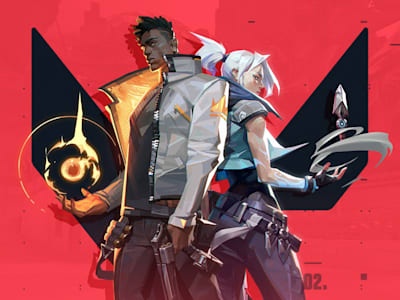
VALORANT agents
© Riot Games
No agent is difficult to use, but some require more training and skill. The duelist Phoenix is a bit easier than Jett to start with, but if you compare those two duelists to Agent Yoru, they're very simple. In fact, Yoru has teleporting and blinding abilities, which need to be practiced before the match because using them wrong can cost you your life.
We recommend that you practice each agent's abilities in training or custom mode. Firstly, you'll know what each agent does, and secondly, you might find one that really suits you.
06
Learn from the best

Go to a tournament like Red Bull Home Ground to learn from the best
© Tom Doms/Red Bull Content Pool
In the beginning, you just need to play, play and play some more. You need to get used to how the game works, how to move and shoot, what the agents do and what the maps look like. Sooner or later, though, you'll reach a stage where you'll know the basics and reach a good rank, but your improvement will stall. In this case, you have to know for yourself if you're failing against better opponents or if it's team play or agent skills giving you trouble.
In any case, outside of individual training, the best advice is always to learn from better players by watching top-level tournaments like Red Bull Home Ground, which boasts some of the world's sharpest VALORANT shooters.
Check out the highlights from the Red Bull Home Ground 2025 World Final below to see just what you can learn from the world's best VALORANT teams:
You can also learn from your own gameplay by reviewing your matches and identifying mistakes or areas where you could improve.
How to record a replay in VALORANT
Ever finish a round and wonder how an opponent caught you completely off guard? Now you can go back and find out.
VALORANT's built-in replay system lets you rewatch matches, study your positioning and catch mistakes you might have missed in the moment. You can switch between first- and third-person perspectives, follow certain projectiles and adjust playback speed to break down important plays.
Better yet, you don't have to manually record every eligible match.
Here's how to watch a replay in VALORANT:
- Finish a match in a supported game mode.
- Open the match details or find it in your Career match history.
- Select Download to save the replay data.
- Once it's downloaded, click Play to open the replay viewer.
The system supports Competitive, Unrated, Swiftplay and Premier matches, along with Custom games where the lobby owner enables recording before the match begins.
There's one catch: replays don't stick around forever. They expire when the game updates to a new patch or after 21 days, whichever comes first. And while you can download a replay to watch within the VALORANT client, you can't export it directly as a standard video file.
Want to save that incredible ace or last-second clutch? You'll still need screen-recording software like OBS or a compatible NVIDIA or AMD capture tool to record the footage.
Replays are also useful for spotting patterns in your own performance. Maybe you're holding the same predictable angle every round or pushing too far without support. Small mistakes like these are easier to recognize when you're not focused on surviving the next gunfight.
For an even closer look at your performance, explore how VALORANT stats can help your gameplay improve.
07
Stay positive
It's a great mindset to have in all walks of life, and certainly in your VALORANT ventures, to remain positive. Don't let your head drop if you're having a bad game. Stay focused, and success will come.
By following these tips, you'll build a strong foundation for success. One day, maybe you'll even make it into the world of esports, but that's a long road. Remember, practice, teamwork and adaptability are your allies on the path to becoming a VALORANT champion. Good luck, agent.
Part of this story
