






Gaming
Games
These EA FC 27 changes could instantly make you a better player
Your default settings aren't necessarily the best ones. Take control of shooting, passing, defending, player switching and the camera with these pro-inspired EA FC 27 tweaks.
The right settings can make EA FC 27 feel more responsive and give you greater control over your players. While there isn’t a single configuration that will suit everyone and every skill level, recommendations from pro EA FC players can help you get the most out of the game’s passing, shooting, defending, switching, and camera options. To help give you the best chance of securing consistent wins, this guide runs through the best settings in EA FC 27 and explains why each one is so important.
01
Take control of your shooting and passing

Shooting and passing assist settings can make a huge difference
© EA Sports
Shooting and passing assist settings can make a huge difference to how the gameplay feels in EA FC 27, but some settings can also improve your goal scoring and pass completion rates.
US-based pro Mike LaBelle recommends using the ‘Assisted’ Shot Assist for players in Ultimate Team Rivals’ Division 3 or lower. This is because while the Precision shooting seemingly adds more power to your shots (as highlighted by Alfie 'RedLac' Calder in the second video below), this setting makes it significantly harder to aim your shots until you’ve mastered the basics. This can make scoring even simple goals more difficult than it needs to be, and so most players will benefit from keeping the ‘Assisted’ setting for shooting assistance.
Another setting worth adjusting here is Cross Assistance. For most players, the game will set this to ‘Assisted’ by default. However, RedLac notes that this typically causes the game to override the amount of power you put onto a cross and therefore can often cause the ball to go to a player running in at the front post. This isn’t always the best option, especially if a player is open at the back post, free from a defender and behind the keeper. By changing this setting to ‘Semi’, you’re given control of the depth of your crosses based on your power input, while the AI helps with getting the ball to the right player.
Finally, change your Pass Receiver Lock option to ‘Late.’ This may be set to ‘Animation Start’ by default, but this means your target player is locked as soon as your player starts the kicking motion. Setting it to ‘Late’ gives you that little bit of extra time to read what your opponent is going to do and change your passing target if you think they’re trying to cut off a passing lane.
02
Stop letting the AI defend for you

There are three key settings to tweak here
© EA Sports
There are three key settings all players should change in EA FC 27 when it comes to defending and player switching.
The first is Directional Clearances. This should be adjusted to ‘Directional.’ The default ‘Classic’ option lets the AI determine where the ball should go. This can see the ball go out for corners or into a busy area in the middle of the pitch that can invite further pressure.
The ‘Directional’ setting allows you to control where the ball will be cleared by moving the left analogue stick in the direction you want. This is particularly useful for late-game moments where pressure can feel relentless.
RedLac also highlights a really important setting given EA FC 27’s lobbed through-ball meta. Changing the Auto-Switching option to ‘Loose Balls Only’ rather than to ‘Air Balls and Loose Balls’ prevents frustrating moments where the AI switches you to a player on the other side of your defence rather than a player right next to the opposition player breaking through on goal.
Finally, a word of advice on player switching in general. Rather than using the completely automatic option of pressing LB/L1, right-stick switching gives you a much greater level of control over which player you’re switched in control of. This can give you precious milliseconds of time back to defend an opposition attack.
RedLac also recommends changing the Right Stick Switching Sensitivity setting to a 4. This may be set to a 6, but this can make minor flicks of the right stick jump to defenders further away. By setting this to a 4, you’ll be rewarded for being more accurate and intentional with light nudges of the right stick to switch to the intended nearby player.
03
Get more responsive player movement
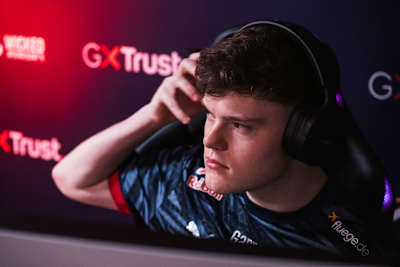
Alfie 'RedLac' Calder plays professionally for RBLZ
© RBLZ
There are two main settings for every skill level that are worth changing. The first is Simplified Skill Moves under the Dribbling section. Make sure this is turned off. Skill moves are a powerful weapon in your arsenal for beating defenders, but some are better suited to certain scenarios than others. Turning this setting off ensures that advanced skill moves are still possible by using the right stick gestures and modifiers. It allows you to use the skill moves that can finally break down stubborn defences and prevents the AI from selecting the wrong one.
The other is Analogue Sprint found under the Controller Preferences section. Analogue Sprint is supposed to give you the ability to control the speed of a player’s sprint by the amount you’re holding down R2/RT. The further you hold it down, the faster the player will run.
In EA FC 27, this feature appears to be largely redundant, but in most cases anyway, when you want a player to sprint, you want them to sprint as quickly as possible. Turn this off to ensure you get the immediate acceleration and burst of pace from a player as soon as you press RT/R2, no matter how far you press it down.
A PS5-specific quick tip: turn off the Trigger Effect option, too. This disables the resistance in the trigger when trying to sprint which can get tiring after a while. Turn it off so you can rapidly press and hold the trigger to get your player sprinting as soon as possible, and so your index finger doesn’t get tired during longer play sessions.
More tips to level up your EA FC 27 game
04
See more of the pitch with the right camera

Without a good view of the pitch, you'll be at a disadvantage
© EA Sports
These settings are all well and good, but without a good view of the pitch, you’re always going to be at a disadvantage. RedLac recommends using the ‘Co-Op’ camera option. This is the widest, zoomed-out angle in the game, allowing you to see more of what’s happening on the pitch at any given time.
You’ll be able to spot players making runs down the wing, or opposition players making a run behind your defenders just before a through ball is played. While other camera angles can get you closer to the action, it’s rare that you need to see the minute details of a player dribbling. The bigger picture is always the best view.
Finally, there are some stadiums where the shadows on the pitch can be really distracting or bright sunlight can make it difficult to see the ball. To help with this, LaBelle recommends turning the Stadium Shadows setting to ‘Off.’ This sets the weather to ‘Overcast’ and gets rid of shadows or contrasting lighting on the pitch entirely.
This doesn’t affect FUT online matches, which are always played at night without stadium shadows, but it can be useful for career modes or offline matches against the AI in Ultimate Team.
About the author
